


Searching Tribal audit submissions
Tribal entities have the option to suppress certain parts of their single audit report data from public access. When a Tribal entity exercises this option, the following information is not available through the FAC's public search:
- Notes to the Schedule of Expenditures of Federal Awards (SEFA)
- Audit finding text
- Corrective action plan text
- The audit report PDF
Other information from the submission remains publicly available and will appear in a regular FAC search. Federal employees with approved access can view and download the suppressed information.
What does 'is_public' mean in the API?
The /general API endpoint includes an is_public field. For a Tribal entity that has chosen to suppress its audit data, is_public is set to False.
An is_public value of False does not mean that the entire submission is hidden from public search or from the public API. The submission and its nonsuppressed data remain publicly available. It means that the protected portions listed above, including the audit report PDF, are not publicly available.
Federal employees with approved access can view and download the suppressed information.
Federal access to Tribal suppressed data
If you are a Federal employee who needs access to Tribal data via our web search, please contact your agency's National Single Audit Coordinator (NSAC) or Key Single Audit Management Liaison (KSAML) and ask them to email their written approval to support@fac-gov.zendesk.com. Once we’ve received their confirmation we will add you to the list of approved users.
To access this suppressed data via our API your agency must request and submit a copy of the Tribal Data API Access Attestation form via the FAC Helpdesk. Please visit our Tribal API page for more information.
Once you’ve gained access, here is how to search for suppressed Tribal audits via our web search:
- The fac.gov landing page
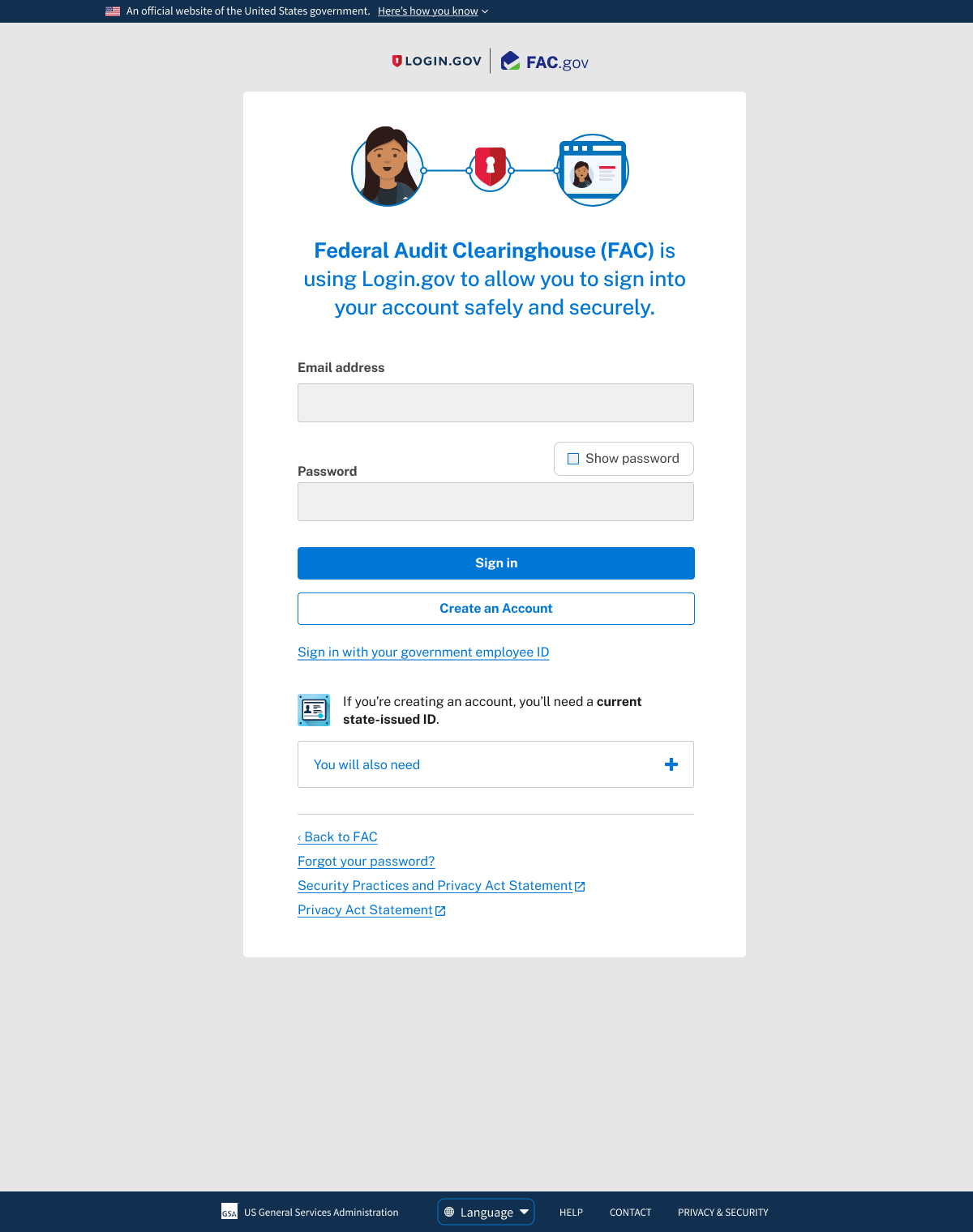
- Logging in with Login.gov
- Signed in to the FAC
- Searching the FAC
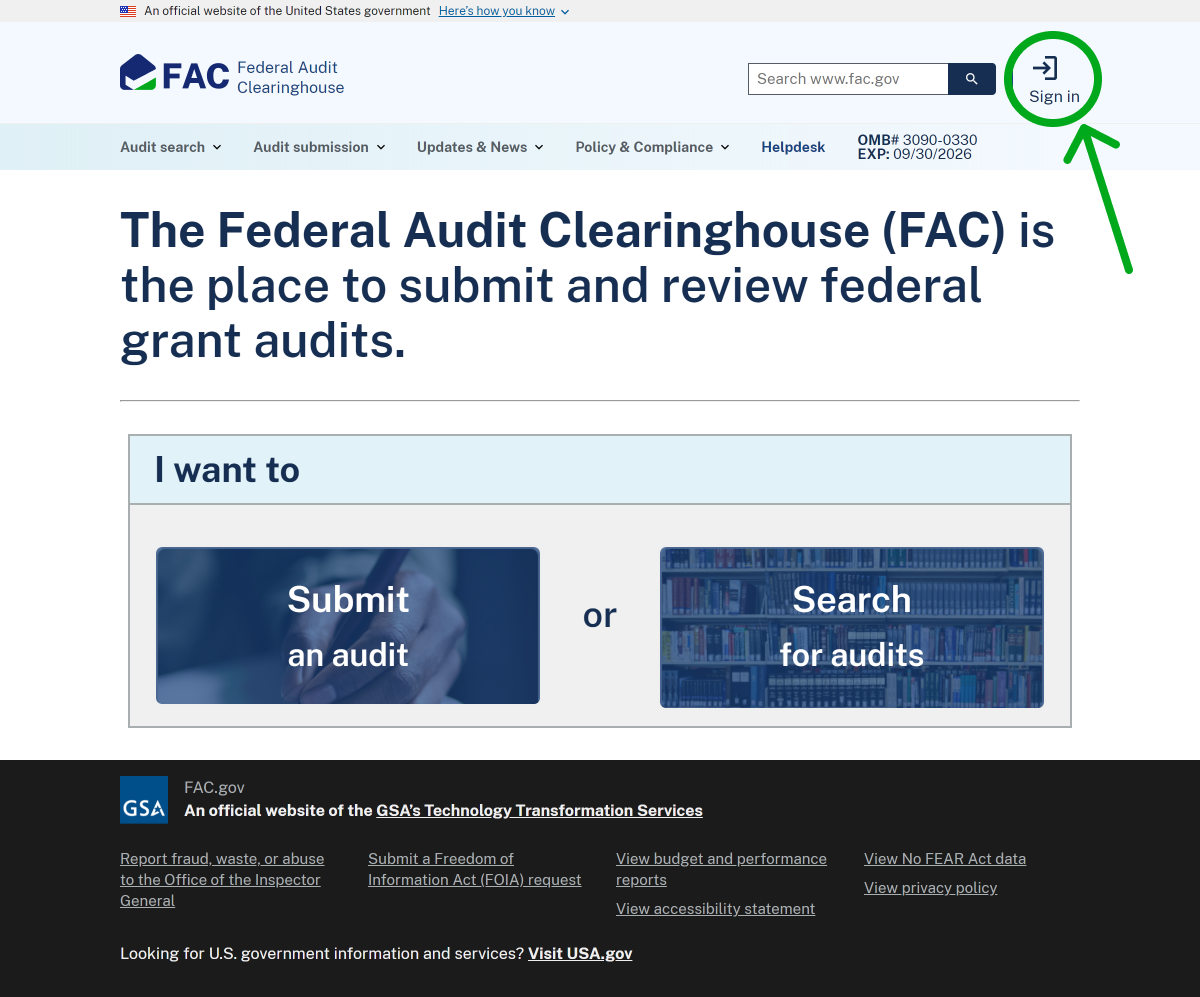
Image
A screenshot of the Login.gov login page. From top to bottom: an email address input, a password input, a 'Sign in' button, and a 'Create an Account' button.
Logging in with Login.gov
Creating a Login.gov account is fully online, free and secure. Please register with the same email address that you used to request access from The FAC. Permission is tied directly to your email address, regardless of your name.
Image
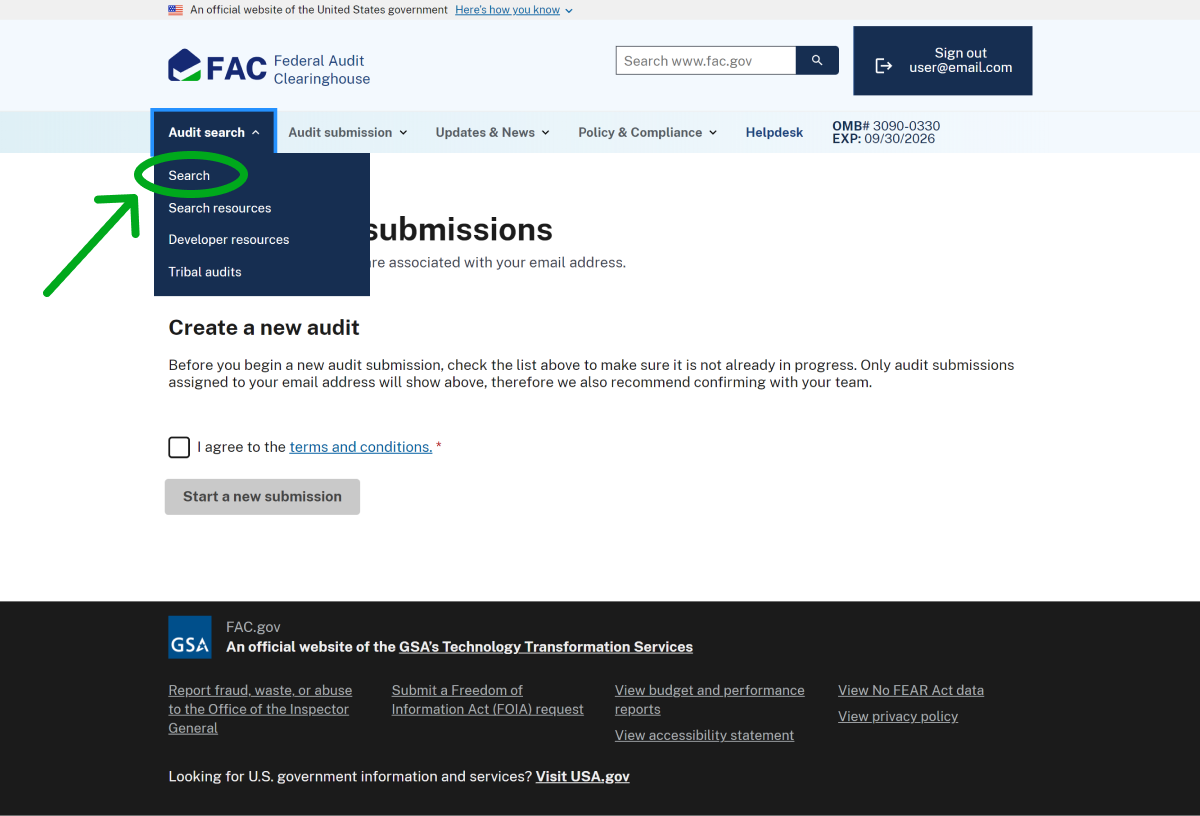
A screenshot of the FAC navigation menu. The first tab, "Audit search" is active and opened with the first link "Search" circled.
Signed in to the FAC
After successfully logging in you’ll be taken to a page for creating a new single audit. To open our web search from here, click Audit Search in the top menu bar and select “Search” from the drop down menu.
Image
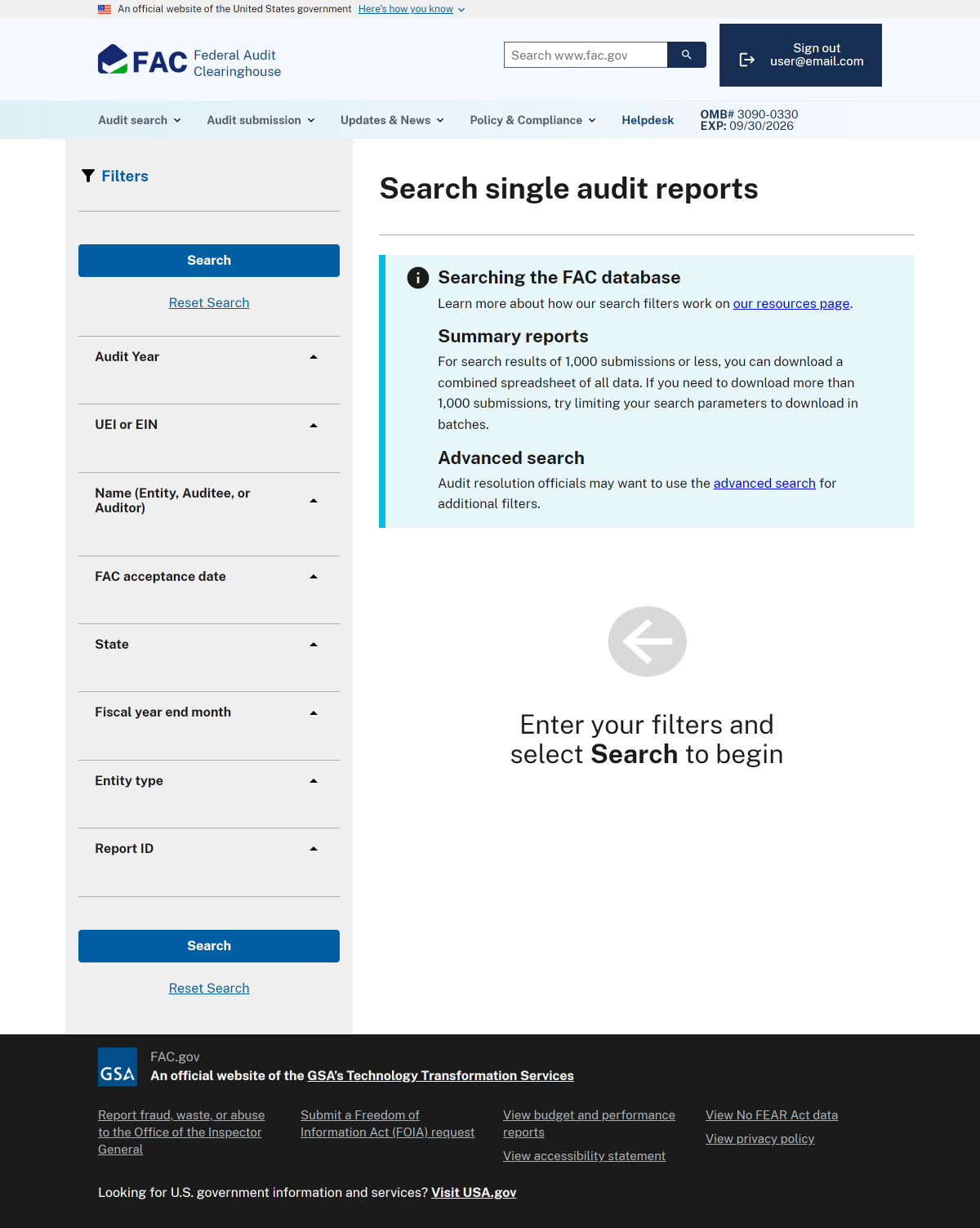
A screenshot of the FAC Basic Search page. On the left, a section titled "Filters" with tabs Audit Year, UEI or EIN, Name, FAC acceptance date, State, Fiscal year end month, Entity type, and Report ID. On the right, a section for instructions on how to search the FAC database.
Searching the FAC
Use the filters on the left-hand side of the page to customize your search for single audit submissions. If you are signed in and have permission to access Tribal audits, they will appear as normal alongside non-Tribal audits in your search results.
If you are signed in and don’t see the suppressed Tribal audits you expected in your search results, please contact the FAC via our Helpdesk to confirm your access.